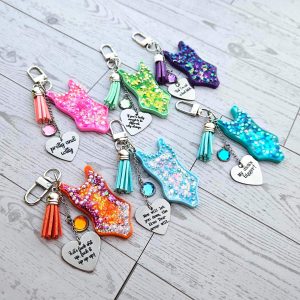
Follow these Instructions to program or reprogram your NFC Keychain.
Think of NFC (Near Field Communication) as a digital “secret handshake” between your keychain and your phone. It’s the same technology that lets you tap your phone to pay for groceries, but instead of sending a payment, these keychains send a link.
Inside the 3D-printed frame, there’s a tiny, battery-free chip hidden under the custom label. When you tap the back of your smartphone against it, the chip tells your phone to instantly open a specific destination—like a Spotify playlist, a digital business card, or a website. No scanning a QR code in the dark and no typing in long URLs; just a physical tap that opens a digital door.
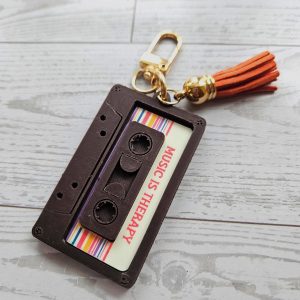
Because the tech is tucked safely inside the design, you get to keep the retro, tactile aesthetic of the keychain while carrying a powerful digital tool in your pocket. Your keychain may have been programmed at purchase. If not these instructions are for you!
Learn how to change the destination link for your keychain using a handy app.
How to Program Your Smart Keychain ⚡️ Your new 3D-printed keychain from ShesSoCrafty Goods is more than just a retro accessory—it’s a digital gateway. Whether you’re setting up a “Digital Mixtape” or a high-tech business card, here is how to program the NFC chip in your keychain.
1. Get the App Download NFC Tools (by Wakdev). It’s free and available on both the Apple App Store and Google Play Store. This app is absolutely zero dollars. I can’t guarantee instructions using any other programming tool. The pro version of the app, also made by Wakdev offers additional features and may be of use to anyone looking for more specialized functionality. Super in depth instructions on NFC programming options is found here: WAKDEV NFCTOOLS INSTRUCTIONS there are a multitude of additional programming options for your keychain and you can find out more about them there.
2. Choose Your Link: What do you want people to see when they tap your keychain?
For Music: Copy a link to a Spotify playlist or Apple Music album.
For Business: Copy the link to your website, LinkedIn, or digital business card.
3. Set the Command: Open the NFC Tools app.
Tap the Write tab at the top.
Tap Add a record —> URL / URI.
Paste your link into the field and tap OK. (you typically don’t need to use https or http. example type in etsy.com. in the URL/URI box.)
4. Prepare for the “Tap”: Tap the Write / [size] Bytes button. You will see an “Approach an NFC Tag” prompt. Tap the NFC tag or bring it close to the sensor on your phone.
5. Find the “Sweet Spot” Because every phone is different, you need to aim your phone’s antenna at the center of the body on your keychain as tags are imbedded toward the bottom of the keychain:
iPhone (XS and newer): The antenna is at the very top edge of your phone. Hold your phone vertically and “dip” the top edge onto the center of the keychain label.
Android (Samsung, Pixel, etc.): The antenna is usually in the dead center of the back of the phone. Rest the middle of your phone directly over the keychain label.
6. Confirm & Test Hold steady for 2–3 seconds. When you feel a vibration and see the Green Checkmark, you’re done!
To test it: Close the app, then bring the phone near the label again. Your link should pop up instantly. Some phones may need to be in an unlocked state to register the tap. This will vary phone to phone. If NFC is on all the time, or if you have a phone wallet on your phone case, you may need to remove your cards and toggle NFC off and on in your phone’s settings.
Pro-Tips for Your 3D-Printed Gear:
Case Check: If you have a very thick or metal phone case, it might block the signal during programming. Try removing the case for the initial write.
The Inset Design: The NFC tag is inside the 3D-printed frame to keep it protected. Make sure your phone’s antenna is making “contact” with that center bottom area for the best connection.
Update Anytime: Want to change your playlist? Just follow these steps again! The chip can be rewritten as many times as you like. 📼🛠️
Got a question? Can’t figure it out? Drop me an email: mail@shessocraftygoods.com and we’ll get you sorted 🙂